Tessel Download

Your windows, fitted together.

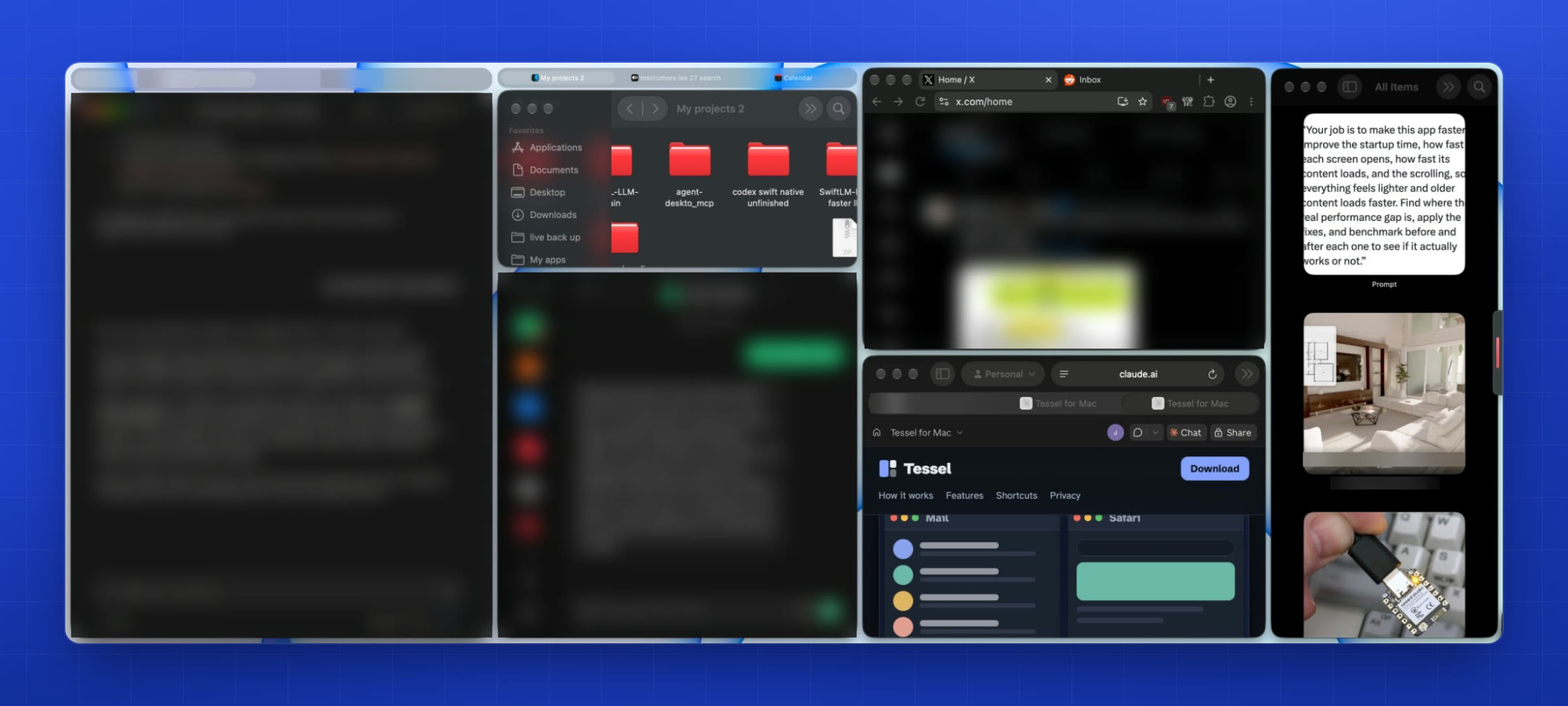
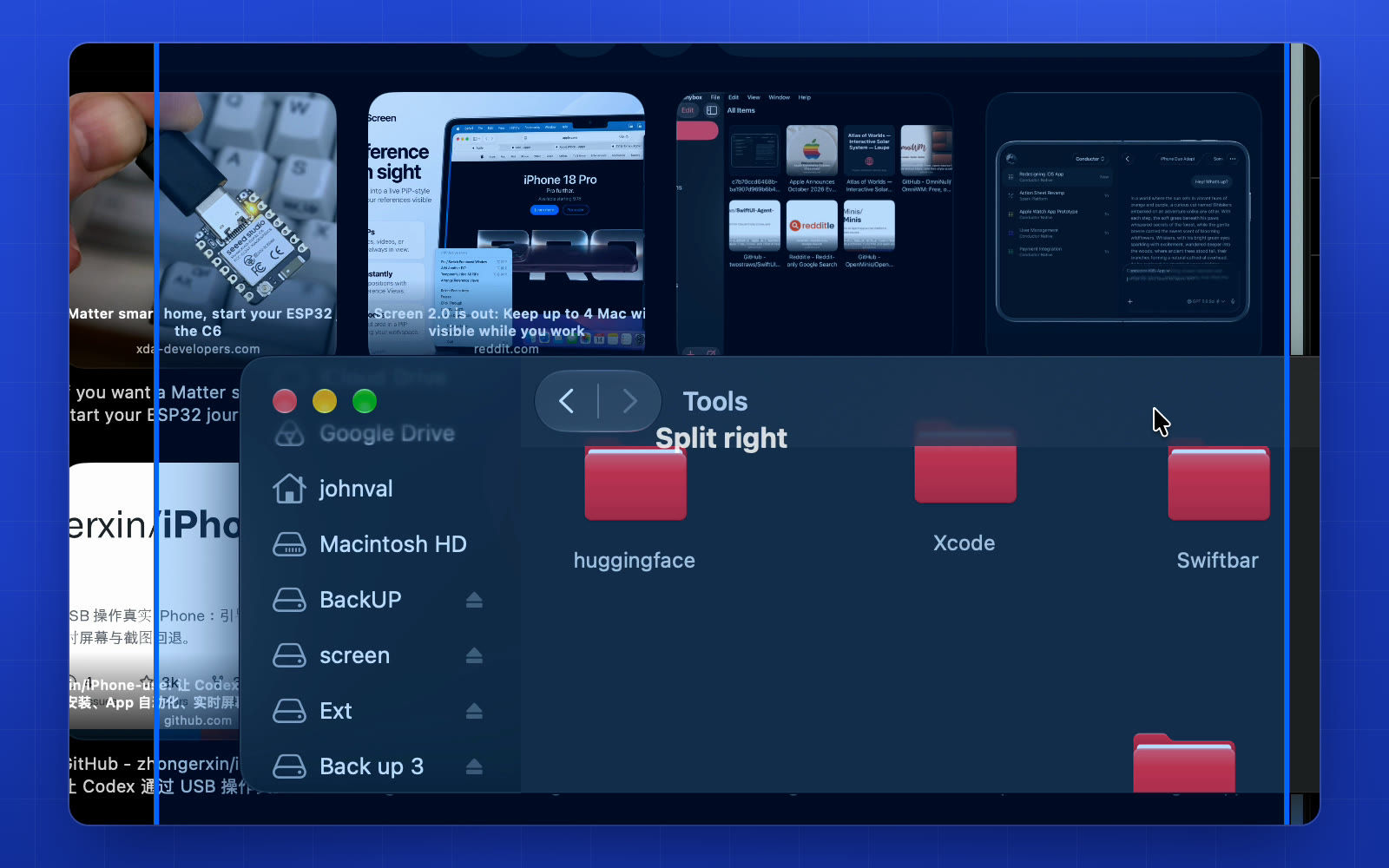
Tessel gives every window on your Mac its own place on the screen. Drag one to an edge or onto another, and the rest make room. Close or minimize one, and the others fill the gap.

Download beta for Mac macOS 14 Sonoma or later · Notarized by Apple

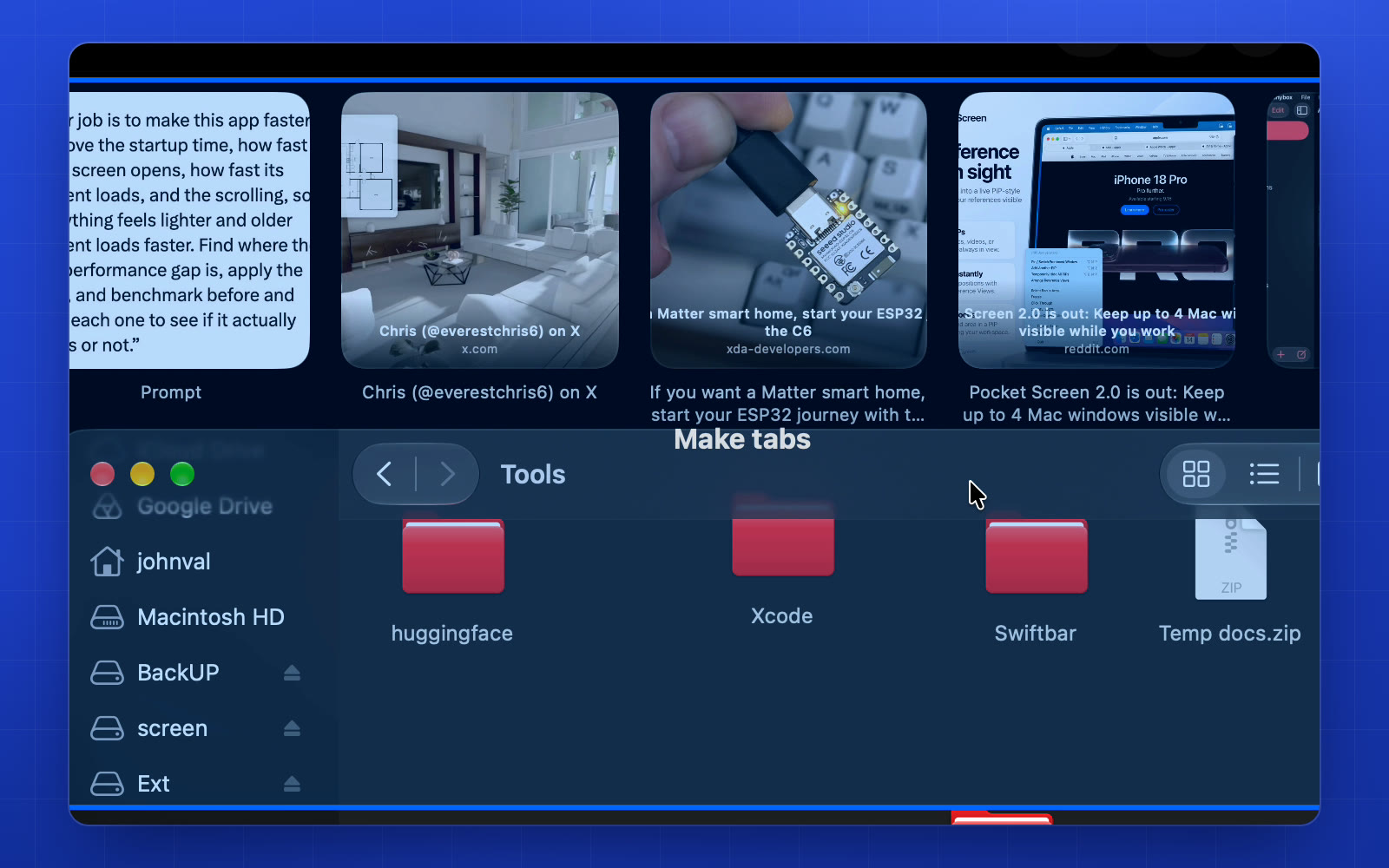
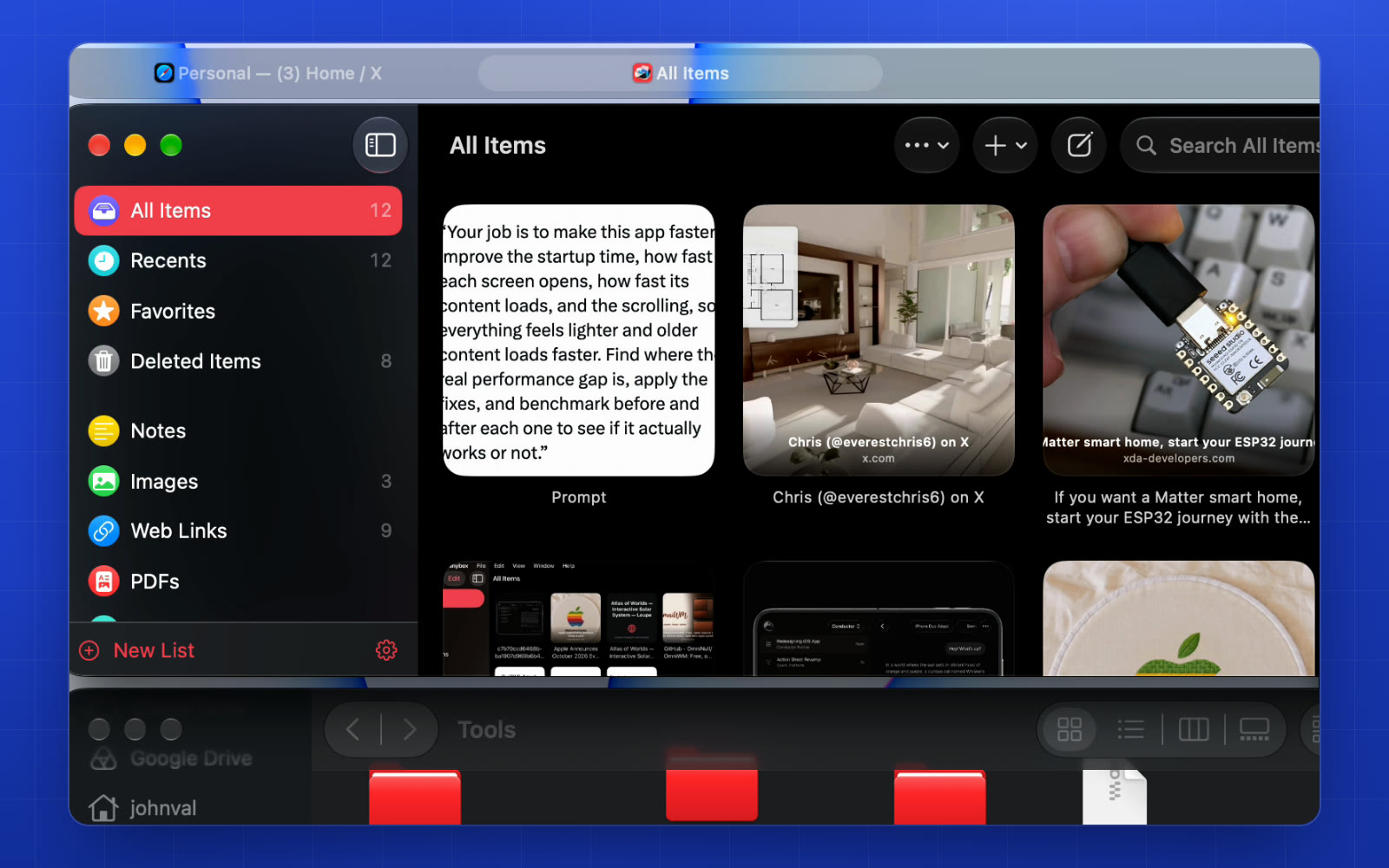
A simulation of Tessel on a Mac desktop. Pick a step to replay it from that point.

What it does

A place for every window, and it stays that way

Tessel works with the windows you already have. It never asks you to learn a grid or memorize a layout language. You move a window where you want it, and Tessel keeps the rest in order.

Close one, the rest fill in

Minimize or close a window and its neighbors grow into the space at once. Bring it back from the Dock and it gets its own place again.

A window you open later takes a share of the biggest space.

Window Map. Press ⌃⌥W for a map of every window as it is tiled, including hidden tabs and minimized windows. Click one to bring it forward. It is optional: turn it on from the menu.
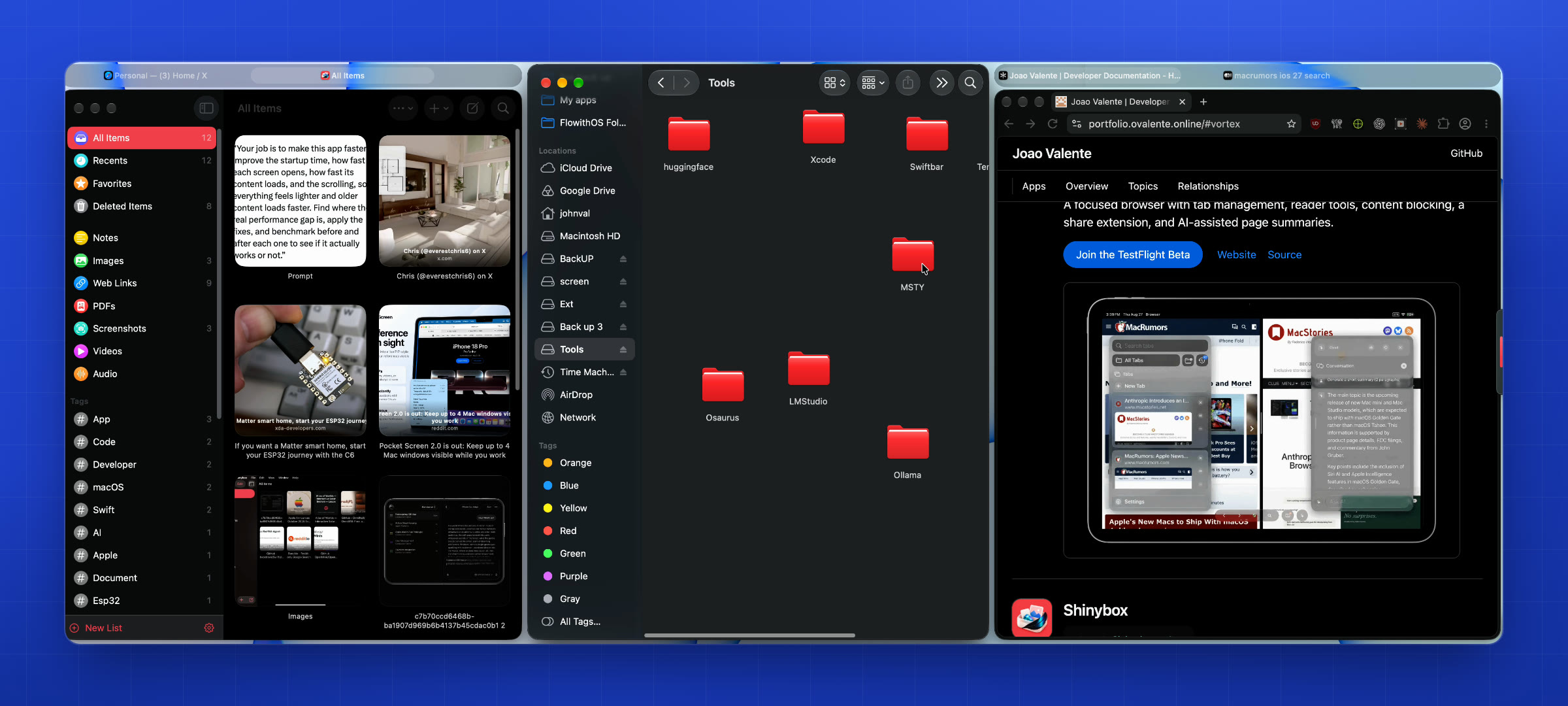
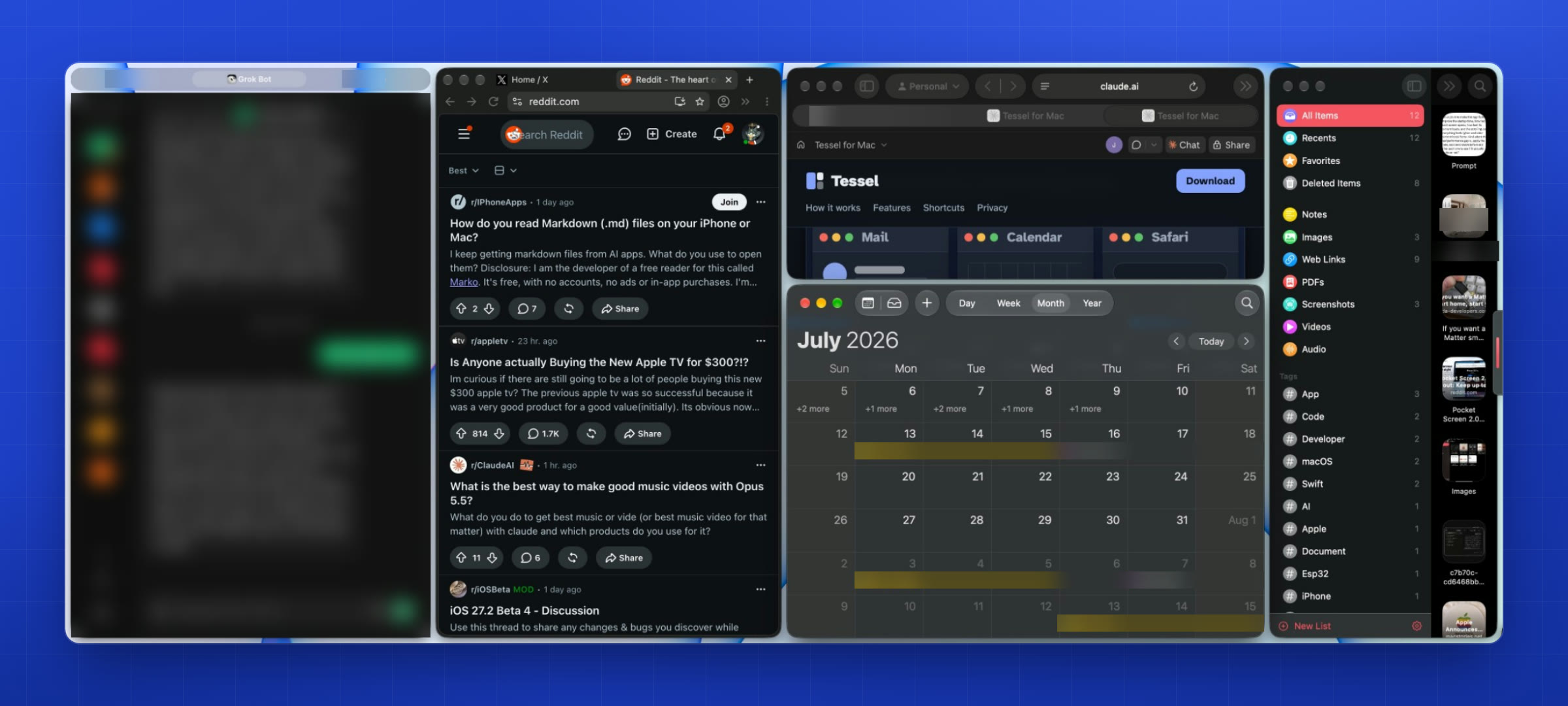
Any windows, one tab bar

  • Drop a window in the middle of another to group them.
  • Switch with a click. Drag a tab onto another window's edge to give it its own space, or onto another group to move it there.
  • Hover a tab to minimize or close that window.

Build app groups. Keep the apps you use together in one tab bar, say Mail, Calendar and Notes. Press ⌃⌥⇧ and a number to save the layout, and ⌃⌥ with the same number brings your groups back.

When a window can't shrink to fit, Tessel adds it as a tab where it fits, and takes it back out when room frees up.

Resize at the seam

Drag the gap between two windows, or a window's own edge, and both sides resize together. If a neighbor would end up smaller than its app allows, it moves into a tab where it fits.

Pin & Focus

Tap three fingers on the trackpad, or press ⌥⌘P, to pin a live view of a window above everything else. Pin several at once. Press and hold three fingers, or press ⌥⌘F, to lock focus on one app while you work. No trackpad needed.

One layout per desktop

Every macOS desktop keeps its own arrangement. Switch desktops and each one comes back exactly as you left it.

Saved layouts

Press ⌃⌥⇧ and a number to save how your windows are arranged. ⌃⌥ and the same number puts them back, even after the apps have restarted.

Free All Windows

One menu item returns every window to where it was before, and you have a normal Mac again. Choose Set Windows to tile them again.

Keyboard and trackpad

Shortcuts and trackpad gestures

Pin or unpin the window in front⌥⌘P
Pin with the trackpadThree-finger tap
Lock focus on the current app⌥⌘F
Lock focus with the trackpadThree-finger hold
Release every pin and focus lock⌥⌘R
Show all windows⌃⌥Space
Window Map (optional)⌃⌥W
Save layout 1 to 9⌃⌥⇧1–9
Restore layout 1 to 9⌃⌥1–9

Built for the Mac

Native, local and quiet

Two permissions, both explained

Accessibility lets Tessel move and resize your windows. Screen Recording is optional and shows live pinned windows and pictures of small panes.

Nothing leaves your Mac

No account and no cloud sync. Window previews are processed on your Mac. Settings, layouts and diagnostic details are stored locally. Read the Privacy Policy.

Lives in the menu bar

Written in Swift with AppKit, the Accessibility API and ScreenCaptureKit. It starts at login if you want, and quitting puts every window back where it was.

Get Tessel

Try it on your own windows

Unzip Tessel, move it to Applications, then open it and allow Accessibility. Choose Set Windows from the menu bar to begin.

Download beta for Mac Beta 0.2.0 (3) · 1.7 MB · Apple silicon & Intel · macOS 14 or later Signed by the developer and notarized by Apple.